
Bluetooth audio delay is not a mystery — it has specific, fixable causes. Most people who experience lag between audio and video, or notice that sound doesn’t sync with what’s happening on screen, are one or two settings changes away from resolving it. The fixes depend on where the delay is happening, and most generic advice online misses that distinction entirely.
How to Fix Bluetooth Audio Delay (2026): Real Fixes for Video, Gaming and Calls
This guide covers the actual causes of Bluetooth audio latency and the specific fixes for each context — video sync, gaming lag, call delay, codec settings on Android and iPhone, and when the honest answer is to stop using Bluetooth entirely.
In This Guide
What Causes Bluetooth Audio Delay?
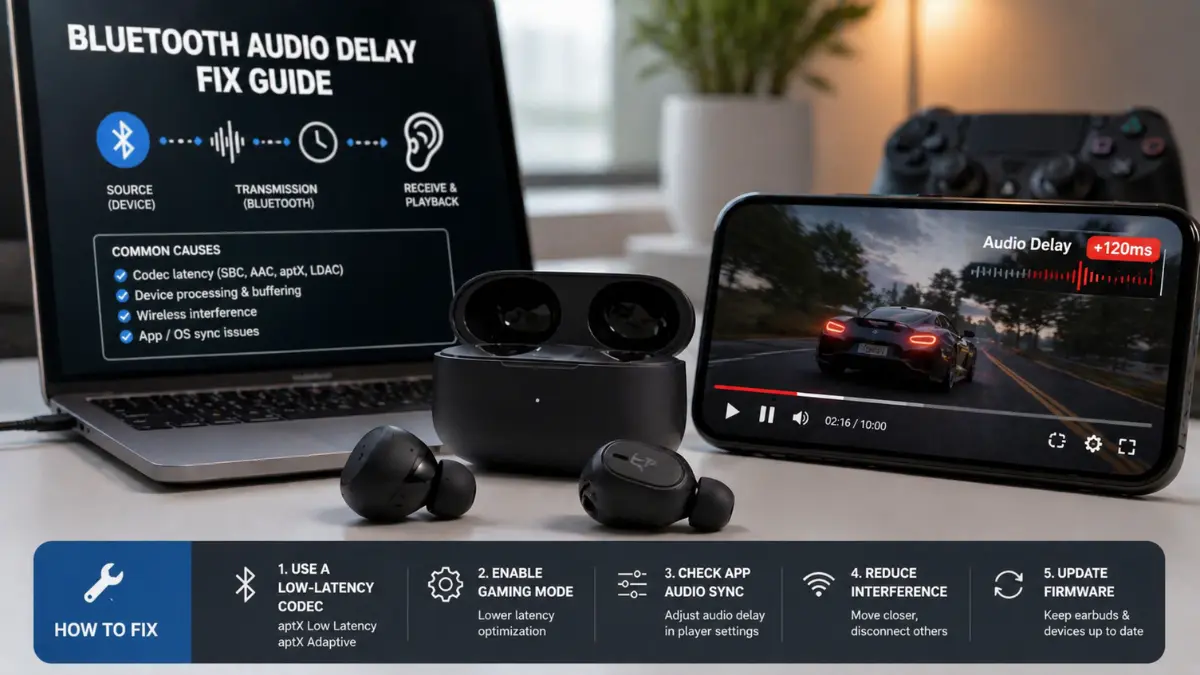
Bluetooth audio takes time to travel from source to ear. That time is measured in milliseconds and is called latency. The question is how many milliseconds — and which part of the chain is responsible.
Codec delay
The codec is the compression algorithm used to encode audio for wireless transmission and decode it on arrival. Different codecs have dramatically different latency profiles:
- SBC — the Bluetooth universal fallback codec. Latency is typically 150–200ms or more. This is the codec your devices use when nothing better is available. It is the most common cause of noticeable video lag.
- AAC — used by Apple devices. Latency is lower than SBC in theory, typically 60–120ms, but implementation quality varies significantly. AAC on Android often performs worse than on iOS due to how Android handles the codec stack.
- aptX and aptX Low Latency — Qualcomm codecs that reduce latency meaningfully. aptX Low Latency can achieve around 40ms, which is below the threshold most people notice as lag. Requires support on both the source device and the earbuds.
- aptX Adaptive — the current aptX generation with variable latency. In gaming mode, it targets sub-50ms delay while maintaining higher audio quality than aptX Low Latency. Increasingly common in mid-range and premium earbuds.
- LDAC — Sony’s high-quality codec. Optimized for audio fidelity, not latency. Typically 80–130ms depending on quality mode setting. Not a good choice if latency is the priority.
Understanding the codec difference in depth matters if you want to make an informed choice. Our Bluetooth codecs explained guide covers the full technical and practical comparison, and our LDAC vs AAC vs SBC breakdown goes into specific use-case recommendations.
Device processing delay
Some earbuds add latency through onboard signal processing — EQ, ANC processing, spatial audio rendering. These take time. The more processing the earbud applies to the incoming audio, the more latency it introduces beyond the codec itself. This is why enabling maximum ANC or Immersive Audio modes sometimes makes video sync noticeably worse.
Bluetooth buffering
Bluetooth is a radio protocol that prioritizes reliability over real-time transmission. It buffers audio to protect against packet loss and interference. When there is RF congestion in the environment — a busy office with many Bluetooth devices, or heavy Wi-Fi usage on the 2.4 GHz band — the buffer fills and drains more aggressively, adding variable latency on top of the fixed codec delay.
OS and app sync issues
Some delay is introduced after the audio leaves the Bluetooth stack. Video players on Windows, browsers on all platforms, and certain streaming apps introduce additional buffering at the software level. This buffering is independent of Bluetooth — it exists to smooth out network streaming inconsistencies — and it sometimes falls out of sync with the audio output timing, particularly when audio routing changes.
If you’ve ever noticed that audio delay is worse in a browser than in the native app for the same streaming service, this is why. The browser’s audio handling adds its own buffering layer that the native app bypasses.
Quick Fixes to Try First
Before going deeper into platform-specific settings, run through these in order. They solve the majority of Bluetooth audio lag complaints without any technical configuration.
1. Disconnect and reconnect
Turn Bluetooth off on your device, wait ten seconds, and turn it back on. Then reconnect the earbuds. Bluetooth connections accumulate state over time, and a fresh connection resets the audio pipeline including buffering behavior. This sounds trivial but resolves roughly 20% of “sudden lag” complaints.
2. Put the earbuds back in the case and re-pair
If disconnecting and reconnecting doesn’t work, return the earbuds to the charging case for 30 seconds. This fully resets the earbuds’ Bluetooth state rather than just the device’s. Then pair fresh.
3. Disable multipoint if active
Multipoint Bluetooth — maintaining simultaneous connections to two devices — adds latency. The earbuds are managing two connection states simultaneously, which introduces overhead in the audio pipeline. If your earbuds support multipoint and it’s enabled, disable it while doing the activity where delay is noticeable. If your earbuds frequently disconnect or lag, multipoint is worth investigating as a cause. Our multipoint Bluetooth earbuds guide covers the earbuds that handle this most reliably.
4. Reduce wireless interference
Move closer to the source device. Turn off nearby Bluetooth devices that aren’t in use. If you’re on a 2.4 GHz Wi-Fi network, consider temporarily switching to 5 GHz — the 2.4 GHz band is shared with Bluetooth and heavy Wi-Fi usage on that band directly interferes with Bluetooth stability. Microwave ovens also cause brief interference when in use.
5. Disable onboard processing features
In the companion app for your earbuds, try disabling ANC, Immersive Audio, spatial audio, or any EQ processing. Each of these adds processing delay. With all processing disabled, you’re testing the codec’s raw latency, which is the baseline to work from.
6. Switch codec on Android
If you’re on Android, go to Developer Options and manually select a lower-latency codec. Full instructions are in the Best Settings section below. This is the single most impactful fix for Android users experiencing consistent video lag.
Fix for Video — YouTube, Netflix, Smart TVs
Audio-video sync issues with Bluetooth earbuds are among the most reported problems, and the fix varies depending on where you’re watching.
Browser vs. native app
Always use the native app over a browser if one is available. Netflix, YouTube, Disney+, and most major streaming services have native apps on Android, iOS, and major platforms. Native apps handle Bluetooth audio routing more efficiently than browsers, which add their own audio buffering layer. If you’re experiencing lag watching Netflix in Chrome on Windows, download the Netflix app from the Microsoft Store and test again. The difference is often significant and immediate.
Using the audio offset / sync setting
Many media apps and platforms include an audio sync or audio offset setting. In VLC, for example, you can delay video by a specific number of milliseconds to match the audio output. This is not a fix for the underlying Bluetooth delay — it’s a workaround that makes the video match the audio rather than the other way around. It works well for fixed-delay situations like SBC codec. It works less well when delay is variable (packet loss conditions).
On Android, the Developer Options allow you to observe the active codec. Knowing your codec helps you estimate how many milliseconds of offset to apply if a manual sync option is available.
Smart TV Bluetooth lag
Smart TVs are particularly problematic for Bluetooth audio sync because their Bluetooth stacks are often older, less optimized, and stuck on SBC without any option to switch. Many smart TVs from major manufacturers have audio delay settings buried in their sound menus — often labeled “Audio Delay,” “Audio Sync,” or “A/V Sync.” This is a manual offset, typically adjustable in steps of 10ms. Increasing this value delays the video output to match the audio, which is the correct fix for Bluetooth lag on TVs.
If your smart TV has no audio sync setting and the Bluetooth lag is consistent, a Bluetooth transmitter dongle that plugs into the TV’s optical audio output (TOSLINK) may support aptX Low Latency and provide a significantly better connection than the TV’s built-in Bluetooth. This is not a glamorous solution but it works.
When the delay changes during playback
Variable delay — where sync is fine initially but drifts during a long video — typically indicates Bluetooth congestion or buffering instability rather than a fixed codec delay. In this case, codec switching is less helpful. Focus on reducing wireless interference, ensuring the source device and earbuds are within a reasonable range, and checking that no background processes on the source device are competing for Bluetooth bandwidth.
Fix for Gaming — The Critical Section
This section is different from the rest of the guide because the honest answer here is harder.
Bluetooth is fundamentally unsuited for competitive gaming. This is not a configuration problem with a workaround. It is a structural limitation of how Bluetooth audio works. Before spending time on settings, understand what you can and cannot fix.
Why Bluetooth latency matters more in gaming than in video
In video, the source content can be delayed to match audio — the timing relationship between video frames and audio is flexible because you’re watching passively. In gaming, the game’s audio is real-time feedback. A gunshot you hear 150ms after it happens in-game is 150ms of feedback you didn’t have. In fast-paced competitive games, that’s the difference between reacting and not reacting. You cannot delay the game to match your audio. The only variable is the audio latency itself.
For casual mobile gaming — card games, turn-based strategy, puzzle games — 100–150ms of Bluetooth delay is irrelevant. For real-time games where audio is information — first-person shooters, battle royale, racing games — it is not.
Wired audio vs Bluetooth for gaming
A wired connection has effectively zero audio latency — the signal is electrical, not wireless, and transmission is near-instantaneous relative to human perception. Any latency in wired audio comes from the DAC (digital to analog converter) and is typically under 5ms. Compared to even the best Bluetooth low-latency mode, wired is not meaningfully better — it is categorically different.
If your gaming setup permits it, a wired earbud or headphone eliminates audio latency as a variable entirely. A USB audio adapter on a PC or a 3.5mm to USB-C adapter on a phone restores wired audio to devices that have removed the headphone jack.
Low-latency Bluetooth modes for gaming
Some earbuds include a dedicated gaming or low-latency mode that prioritizes latency over audio quality. In this mode, the codec and buffer behavior is adjusted to minimize delay at the cost of audio bandwidth. The best implementations reach approximately 40–60ms, which is acceptable for casual to moderate gaming. Examples include the aptX Adaptive gaming mode, and proprietary low-latency modes in gaming-focused earbuds.
To activate: check the companion app for your earbuds. It may be labeled “Gaming Mode,” “Low Latency Mode,” or “Game Mode.” Not all earbuds have this feature — it needs to be explicitly present in the firmware.
Important: the low-latency mode usually only activates when the source device also supports the corresponding codec. On an iPhone, aptX-based gaming modes are unavailable because iOS does not support aptX. On Android with a Qualcomm chipset, aptX Adaptive gaming mode is available with compatible earbuds.
The real recommendation for gaming
For mobile gaming on a phone: enable gaming/low-latency mode if available on your earbuds, use aptX Adaptive on a compatible Android device, and accept that 40–60ms is the practical floor for Bluetooth gaming audio. For most mobile games, this is workable.
For PC gaming: use wired audio for anything competitive. Bluetooth on PC adds latency on top of the codec delay due to Windows Bluetooth audio driver overhead. For a broader look at gaming-specific audio gear that genuinely handles latency, see our best earbuds for gaming guide, which covers both wired and low-latency wireless options with honest latency context.
Fix for Calls and Zoom Delay
Call delay is a different problem from video delay. The mechanism is different, and so is the fix.
The profile-switching problem
When you’re listening to music through Bluetooth earbuds, your device uses the A2DP profile — a high-quality, one-way audio stream. When a call begins, your device needs to activate the microphone on the earbuds. This requires switching to the HFP (Hands-Free Profile) or HSP (Headset Profile), which is a bidirectional audio connection that supports both playback and microphone input simultaneously.
The switch from A2DP to HFP is often audible — audio quality drops noticeably, and there may be a brief gap or delay as the profiles negotiate. Some platforms handle this transition better than others. Zoom and Microsoft Teams have their own audio processing layers that sometimes conflict with the OS Bluetooth audio stack, creating additional latency on both the inbound and outbound sides.
Why calls sound delayed to the other person
The person you’re calling may perceive your voice as delayed even if you don’t notice delay yourself. This is because your microphone signal travels through the earbuds’ HFP microphone processing, through Bluetooth, through the device’s audio stack, through the app’s audio processing (Zoom, Teams, etc.), and then through the internet to the other person. Each step adds latency. The round-trip delay — what you hear of your own voice returning as echo — can be significant.
Practical fixes for call delay
- Use earbuds with a stable HFP implementation. Not all earbuds handle the A2DP-to-HFP transition well. Jabra earbuds, in particular, are designed with this transition as a primary engineering concern — they switch profiles faster and more reliably than most consumer earbuds.
- Start the call before putting earbuds in. Connecting to HFP before the call begins means the profile switch happens before audio begins flowing, eliminating the mid-call profile negotiation delay.
- In Zoom or Teams settings, select the correct audio device explicitly. Do not rely on automatic audio routing. Open audio settings during a call and manually set both the speaker and microphone to your earbuds. Auto-selection sometimes leaves the microphone on the device’s internal mic while routing playback to Bluetooth, causing desync.
- Reduce background processing apps. On Windows particularly, audio routing through virtual audio devices (voice changers, loopback tools, virtual cameras) adds processing latency that compounds the Bluetooth delay. Close unnecessary audio-processing software during calls.
- Check for firmware updates. HFP performance is frequently improved through firmware updates on earbuds that have had call latency issues. Jabra, Sony, and Bose have all shipped firmware updates specifically addressing call audio handling.
Best Settings for Lowest Latency
Android — Developer Options codec selection
This is the most powerful latency fix available on Android, and most users never use it.
Step 1: Enable Developer Options. Go to Settings → About Phone → Software Information → tap “Build Number” seven times. You’ll see a notification that Developer Options have been enabled.
Step 2: Go to Settings → Developer Options → scroll to the Bluetooth section.
Step 3: Look for “Bluetooth Audio Codec.” Select the best codec your earbuds support:
- aptX Adaptive (best, if supported by both device and earbuds)
- aptX Low Latency (lowest latency, if available)
- aptX HD (higher quality than aptX, slightly more latency)
- aptX (good balance)
- AAC (reasonable if aptX isn’t available)
- SBC (avoid for video/gaming — use only as fallback)
Step 4: Also look for “Bluetooth Audio Quality” or “Bluetooth Audio Sample Rate” — set these to the highest values available. The adaptive quality settings can reduce to lower-quality codecs under congestion conditions; fixing them prevents dynamic downgrading.
Note: the codec selection only applies when both the source device and the earbuds support the chosen codec. If you select aptX but your earbuds don’t support it, the device will fall back to the next available codec automatically.
iPhone and iOS — limited options
iOS does not expose codec selection to users. Apple manages the Bluetooth audio codec automatically and only supports AAC and SBC. There is no way to select aptX, LDAC, or any other third-party codec on an iPhone, regardless of what the earbuds support.
This is a meaningful limitation for third-party earbuds. AirPods connected to an iPhone use AAC with Apple’s own optimized processing and achieve good latency for consumer use. Third-party earbuds connected to an iPhone are limited to AAC at best, regardless of what low-latency codecs they support.
The practical implication: if you’re on iPhone and use third-party earbuds, low-latency codec advantages advertised on the box don’t apply to your device. If latency is a priority, this is worth knowing before purchasing. For iPhone users who want to understand how this affects earbud performance specifically, our AirPods Pro 2 review covers how Apple’s audio stack handles latency within its ecosystem.
Windows — Bluetooth audio overhead
Windows adds latency through its Bluetooth audio driver stack beyond what the codec itself introduces. The Windows audio session API (WASAPI) has historically handled Bluetooth audio with larger buffers than mobile operating systems, partly for driver stability reasons. This means Bluetooth audio latency on Windows is typically higher than on Android with the same codec and earbuds.
Practical fixes:
- Use the earbuds’ USB Bluetooth dongle if one is included (Jabra Evolve2 Buds and similar professional earbuds include one). This bypasses Windows’ generic Bluetooth driver with a manufacturer-specific one optimized for the specific earbud.
- Update Bluetooth drivers from the device manufacturer’s site, not just through Windows Update.
- In WASAPI-aware media players (e.g., foobar2000), disable exclusive mode and reduce buffer size if the application allows it.
- For gaming, see the gaming section — the recommendation is to avoid Bluetooth entirely.
Mac — better than Windows, still limited
macOS handles Bluetooth audio with lower latency than Windows in most cases. Apple’s AAC implementation on Mac is better optimized for AirPods than for third-party earbuds. For non-AirPods earbuds on Mac, codec selection is not user-accessible. The most practical fix is to ensure Bluetooth interference is minimized and to use the companion app to disable unnecessary audio processing features.
When You Should Not Use Bluetooth
This section will save some readers significant time and frustration. There are contexts where Bluetooth audio delay cannot be fixed to a satisfactory level, and continuing to troubleshoot settings is not the correct response. The correct response is to stop using Bluetooth for that specific task.
Competitive gaming
As covered in detail above: Bluetooth cannot deliver the sub-20ms latency that competitive real-time gaming requires. No settings change, codec switch, or firmware update closes this gap on current hardware. Use wired audio.
Audio and video editing with timeline monitoring
Audio production software and video editing applications require frame-accurate sync between playback position and audio output. Bluetooth’s variable latency — which shifts as congestion and buffer conditions change — makes precise scrubbing and monitoring unreliable. A wired monitor or studio headphones connected over a USB audio interface is the standard for this work for a reason.
If you’re building a productivity setup that involves audio or video production, our work productivity setup guide covers audio interface and monitor recommendations for serious creative work.
Real-time instrument monitoring
Monitoring your own voice or instrument through Bluetooth earbuds during recording creates a latency loop — you hear yourself delayed, which disrupts natural performance timing and pitch control. Professional in-ear monitors (IEM) for live use are wired for this reason.
High-stakes video calls where audio quality matters
For casual Zoom calls, Bluetooth is fine. For a recorded presentation, podcast interview, or professional call where audio quality is a meaningful concern, a USB microphone and wired headphones or a dedicated audio interface eliminates Bluetooth’s quality and latency variables entirely.
Best Low-Latency Earbuds
If you’ve worked through the fixes above and the problem is that your current earbuds don’t support the codecs needed for low latency, here are the categories to look at.
Best for Android low-latency gaming and video
Earbuds with aptX Adaptive support, particularly those with a dedicated gaming mode, are the strongest choice for Android users where latency is a priority. aptX Adaptive in gaming mode targets sub-50ms delay with maintained audio quality — the best currently achievable in Bluetooth earbuds. Look for models from Sony, Jabra, or manufacturers that explicitly list aptX Adaptive gaming mode in the spec sheet.
Best overall consumer ANC earbuds with reasonable latency
For users who want strong ANC and acceptable latency for daily use, premium earbuds like the Sony WF-1000XM5 and the Bose QuietComfort Ultra Earbuds both offer functional latency for video and calls — not optimized for gaming, but not problematic for everyday use. For a direct comparison of these two models, our Sony WF-1000XM5 vs Bose QC Ultra comparison covers the latency differences in practical terms alongside all other factors.
The Sennheiser Momentum True Wireless 4 is another option worth considering for users who prioritize sound quality alongside workable latency — see our Sennheiser MTW4 review for specifics on how it handles the audio-video sync scenario.
Best budget option with low-latency support
Several earbuds in the sub-$100 tier include gaming modes and aptX Adaptive support. Our best earbuds under $100 guide identifies the options in this range that offer the best latency performance for the price, which is a practical consideration for users who don’t need premium ANC but do need reliable video or gaming audio. Also worth noting: some earbuds in this range have codec support that their more expensive competitors lack — more money doesn’t always mean lower latency.
Travel earbuds with acceptable latency
For users who primarily experience Bluetooth lag on flights or during travel, earbuds optimized for ANC and travel comfort can be paired with smart TV audio offset settings or in-flight entertainment system adjustments to make video sync workable. Our best ANC earbuds for travel guide addresses this specific use case with latency context included.
Final Verdict
Bluetooth audio delay is a real and fixable problem in most cases — but the fix depends on correctly identifying which part of the chain is causing it.
For video sync issues: switch to a native app over a browser, change codec on Android via Developer Options to aptX or AAC at minimum, use your TV’s audio delay offset, and disable unnecessary onboard processing on the earbuds.
For gaming lag: enable the earbud’s gaming or low-latency mode if available, use aptX Adaptive on a compatible Android device, and accept that for competitive gaming, wired audio is the correct tool. No Bluetooth earbud setting changes this.
For call delay: use earbuds with stable HFP implementation, manually set audio devices in your conferencing app, and start calls before connecting earbuds when possible.
For persistent lag that settings can’t fix: the limiting factor is either the codec your device and earbuds can negotiate, or an older earbud that doesn’t support low-latency modes. In that case, new hardware with aptX Adaptive support resolves what settings cannot.
Most Bluetooth audio delay problems are solvable without new hardware. Work through the codec settings first — particularly on Android — before drawing conclusions about whether your earbuds are the problem. You may find the issue was always a software setting one menu level deeper than you looked.
If you’re experiencing other earbud issues alongside latency — such as audio that seems thinner or quieter than expected — our guides on why earbuds sound different every day and why earbuds keep disconnecting cover the related hardware and software variables that often compound each other.
Frequently Asked Questions
Why is there a delay between Bluetooth audio and video?
Bluetooth audio delay in video is caused by the time required to encode, transmit wirelessly, decode, and play audio through your earbuds — a process taking anywhere from 40ms to over 200ms depending on the codec and device. Video often arrives faster than audio, creating the lip-sync mismatch you notice. Switching to a lower-latency codec like aptX Low Latency, or using a platform’s audio offset setting, resolves most cases.
Is Bluetooth audio delay fixable for gaming?
Partially. Earbuds with a dedicated gaming or low-latency mode can reduce delay to around 40–60ms, which is acceptable for casual mobile gaming. For competitive PC or console gaming where precise audio timing affects gameplay, Bluetooth introduces too much latency to be reliably compensated. Wired audio remains the correct solution for competitive gaming.
How do I fix Bluetooth audio delay on Android?
Enable Developer Options, then open Bluetooth Audio Codec settings and select aptX, aptX Low Latency, aptX Adaptive, or AAC — in order of preference depending on what your earbuds support. Avoid SBC if alternatives are available. Set the audio quality to high rather than adaptive to prevent dynamic codec downgrading under congestion.
Why does Bluetooth audio delay happen on calls?
Call delay is often caused by the earbuds switching from the A2DP Bluetooth profile (high-quality music audio) to HFP (hands-free, which activates the microphone) when a call begins. This transition introduces delay and an audible quality change. Using earbuds with stable HFP implementation and manually setting audio devices in your conferencing app reduces this delay.